Documentation
Running DVR-Scan
After installation, the dvr-scan command should be available from a terminal or command prompt. Try running dvr-scan --help. The UI can be launched by running dvr-scan-app. See the User Guide for information on how to use the UI.
For portable versions, replace dvr-scan with the path to dvr-scan.exe in the extracted files on your system. The UI can be launched by running dvr-scan-app.exe.
To extract all motion events from a video, you can start with:
dvr-scan -i video.mp4
This will produce output events in your working directory starting with the prefix video.DSME_ (e.g. video.DSME_0001.avi). If you want to limit scanning to a particular part of the video frame, you can use the region editor:
dvr-scan -i video.mp4 -r
DVR-Scan should provide good results for most use cases, but can be fine tuned for specific use cases. There are two main categories of these settings: detection and sensitivity, and event parameters.
Most program options can be set using a config file. DVR-Scan also looks for a dvr-scan.cfg file in the following locations:
- Windows:
C:/Users/%USERNAME%/AppData/Local/DVR-Scan/dvr-scan.cfg - Linux:
~/.config/DVR-Scan/dvr-scan.cfgor$XDG_CONFIG_HOME/dvr-scan.cfg - OSX:
~/Library/Preferences/DVR-Scan/dvr-scan.cfg
These settings will be used by default each time you run DVR-Scan, unless you override them. Selecting the Settings -> Save As User Default option in the UI will overwrite this file.
Multiple Videos
You can specify multiple input videos as long as they have the same resolution and framerate:
dvr-scan -i video1.mp4 video2.mp4 video*.mp4
Wildcards are also supported:
dvr-scan -i video*.mp4
Note that this will concatenate the videos together in the order they are specified.
This can be undesirable for some types of footage being analyzed. For example, if a folder contains different dashcam footage clips, a significant amount of time can pass between clips (e.g. when the vehicle is shut off). This can result in DVR-Scan generating false events between videos.
To avoid this, you can run DVR-Scan on each video in a loop. For example, on Windows:
for /F %i in ('dir *.mp4 /b') do dvr-scan -i %i
Or on Linux/OSX:
for f in /mnt/videos/*.mp4
do
    dvr-scan -i $f
done
Note that multiple inputs also do not support other output modes. You can use ffmpeg to concatenate all input videos before processing, or use a for-loop as above.
Output Format
By default, DVR-Scan encodes motion events as MP4 (H.264) files using ffmpeg (output mode encode), with support for overlays, multiple inputs, and audio. If ffmpeg is not available on your system, DVR-Scan falls back to the OpenCV VideoWriter (output mode opencv), which usually requires the output files be in .AVI format of some kind. You can set -m opencv explicitly to restore the pre-2.0 default behavior.
DVR-Scan also supports using ffmpeg to extract motion events directly from the source video. This is done by setting -m/--output-mode to ffmpeg (reencode) or copy (codec copy mode, may not be frame accurate). For example:
dvr-scan -i video.mp4 -m ffmpeg
You can customize the options passed to ffmpeg using a config file (see the encode-args, ffmpeg-input-args, and ffmpeg-output-args) settings).
Setting output mode to ffmpeg or copy has the following caveats:
- input concatenation is not supported
- overlays are not supported
VFR (Variable Framerate)
Variable framerate (VFR) videos are supported. DVR-Scan uses each frame's presentation timestamp (PTS) for all event timing, so detected event start/end times are accurate in wall-clock time regardless of framerate changes, and events are extracted at the correct positions in all output modes.
Caveats when scanning VFR inputs:
- Frame numbers (e.g. in reports, or shown by overlays) are approximations derived from the average framerate; timestamps are exact.
- Clips produced by the default
encodeoutput mode are written at the input's average framerate: every frame is preserved, but sections of the video whose local framerate deviates from the average will play back faster or slower than real time. If exact playback timing is required, use-m ffmpegor-m copyto extract events directly from the source instead.
dvr-scan Options
Most options are accessible through the UI, config files, and the command-line interface.
General
-
-h, --help
Show help message and all options and default values. Will also show any options overriden by your user config file, if set. -
-V, --version
Show version information. -
-L, --license
Show copyright information.
The following options control terminal output:
-
--logfile log.txt
File to save (append) log output. -
-q, --quiet
Suppress all console output except for final cutting list. -
-v, --verbosity
Set verbosity of output messages, must be one of:debug, info, warning, error
--verbosity info
Input
-
-i video.mp4, --input video.mp4
Path to input video. May specify multiple input videos so long as they have the same resolution and framerate. Wildcards/globs are supported (e.g.-i folder/*.mp4). Extracted motion events use the filename of the first video only as a prefix. -
-c settings.cfg, --config settings.cfg
Path to config file. If not set, tries to load one automatically from the user settings folder (rundvr-scan --helpto see the exact path for your system). See the config file documentation for what options can be specified.
Regions
Detection can be limited to specific regions of the frame. This can be done interactively using the -r/--region-editor flag, or by providing a list (-a/--add-region) or file (-R/--load-region) containing polygon data.
Regions are specified as a list of points (X, Y) forming a closed polygon (shape with at least 3 points). For example, a triangle is defined as 0 0 100 0 50 50. Multiple regions can be combined, and the result can also be saved to a file using -s/--save-region.
Setting a smaller region of interest can improve scanning performance.
-
-r, --region-editor
Display region editor before processing. PressHto show controls in your terminal. See the user guide for more details.dvr-scan -i video.mp4 -r -
-a, --add-region
Add a region to the scan. Regions are defined by a list of points (min. 3) that enclose the scanning region.dvr-scan -i video.mp4 -a 50 50 100 50 75 75 -
-s, --save-region
Save region data for this scan. Include all regions added or loaded via command line, and any edits made with the region editor if launched.dvr-scan -i video.mp4 -r -s regions.txt -
-R, --load-region
Load region data an existing file.dvr-scan -i video.mp4 -R regions.txt
Seeking/Duration
All time values can be given as a timecode (HH:MM:SS or HH:MM:SS.nnn), in seconds as a number followed by s (123s or 123.45s), or as number of frames (e.g. 1234). dvr-scan -i video.mp4 --start-time 00:35:52 --duration 00:05:00
-
-st time, --start-time time
Timecode in video to start motion detection from -
-dt time, --duration time
Maximum duration of input to process. -
-et time, --end-time time
Timecode to stop processing input.
Frame Processing
-
-df factor, --downscale-factor factor
Integer factor to shrink video before processing, to improve performance. For example, if input video resolution is 1024 x 400, and-df=2, each frame is reduced to 512 x 200 before processing. Uses subsampling for downscaling.--downscale-factor 2 -
-fs num_frames, --frame-skip num_frames
Number of frames to skip after processing a given frame. Improves performance, at expense of frame and time accuracy, and may increase probability of missing motion events. If set,-l/--min-event-length,-Y/--max-event-length,-tb/--time-before-event, and-tp/--time-post-eventwill all be scaled relative to the source framerate. Values above 1 or 2 are not recommended.
When using output modes which re-encode processed frames (encode,opencv), skipped frames are not included. Set-m/--output-modetoffmpegorcopyto include all frames from the input video when writing motion events to disk.
Although adjusted for frame skipping, bounding box smoothing may be inconsistent when using frame skipping. Set-bb 0to disable smoothing.--frame-skip 1
Using downscale-factor and frame-skip may reduce the accuracy of motion detection if set too high.
Motion
All time values can be given as a timecode (HH:MM:SS or HH:MM:SS.nnn), in seconds as a number followed by s (123s or 123.45s), or as number of frames (e.g. 1234). When modifying detection options, it can be useful to generate a motion mask (-mo mask.avi) to visually see how DVR-Scan processes the input.
-
-l time, --min-event-length time
Amount of time/frames that must have a motion score above the threshold setting before triggering a new event.--min-event-length 2 -
-l time, --max-event-length time
Maximum amount of time/frames allowed into a single event. Footage beyond this limit goes to a new event.--max-event-length 1000 -
-tb time, --time-before-event time
Maximum amount of time to include before each event.--time-before-event 1.5s -
-tp time, --time-post-event time
Maximum amount of time to include after each event. Cannot be larger than--merge-window.--time-post-event 2.0s -
--merge-window time
Merge groups of motion which occur less than this amount of time apart into the same event. The default (auto) uses the same value as-tp/--time-post-event, which matches the behavior of previous versions. Set this higher than-tpto combine nearby events without padding each clip with extra time.--merge-window auto -
--max-events count
Maximum number of motion events to detect before stopping the scan early, or 0 for no limit. Useful to quickly check if an input has any motion at all.--max-events 0 -
-t value, --threshold value
Minimum amount of motion a frame must have to trigger an event. Lower values are more sensitive to motion, and require less movement to trigger an event. If too high, some movement may not be detected. Setting too low of a threshold can result in false detections. May require adjustment if other motion settings are changed.--threshold 0.15
Advanced
-
-b type, --bg-subtractor type
The type of background subtractor to use. Must be one of:-
MOG2
: MOG2 Background Subtractor -
CNT
: CNT Background Subtractor, faster thanMOGbut uses different method, so may need to adjust threshold/kernel size -
MOG2_CUDA
: Nvidia CUDA®-based version of MOG2. Requires an OpenCV installation that was compiled with CUDA support.
--bg-subtractor MOG2 -
-
-k size, --kernel-size size
Noise reduction kernel size, in pixels. Kernel size can be increased to filter out smaller movements from a scene. Must be an odd integer at least3or greater. Can also be set to0to disable, or-1to select automatically based on input resolution. Auto sizes are7for 1080p or higher,5for 720p, and3for 480p or lower.--kernel-size 5
Output
-
-so, --scan-only
Do not save/extract events, only perform motion detection and display results. -
-d path, --output-dir path
Write all output files topath. If not specified, files are written in the working directory. -
-m mode, --output-mode mode
Mode to use for saving motion events. Must be one of:-
opencv
: Use OpenCV for saving motion events. Requires .AVI output format. -
encode
: Encode motion events as MP4 (H.264) using ffmpeg, with support for overlays, multiple inputs, and audio. Encoder args can be set using a config file (see theencode-argsoption). -
ffmpeg
: Use ffmpeg for saving motion events. Ffmpeg encoder args can be set using a config file (see theffmpeg-input-argsandffmpeg-output-argsoptions). -
copy
: Same asffmpeg, but using stream copying mode (no reencoding). Can potentially create inaccurate events due to keyframe placement.
-m encode -
The default output mode (encode) requires ffmpeg. If ffmpeg is not available and no output mode is set, DVR-Scan falls back to opencv with a warning.
Multiple input files are not supported when -m/--output-mode is set to ffmpeg or copy (they are supported with opencv and encode). You can use ffmpeg to concatenate all input videos before using DVR-Scan, or run DVR-Scan in a for-loop.
-
-o video.avi, --output video.avi
Save all motion events to a single file, instead of the default (one file per event). Only supported when-m/--output-modeisopencv(requires.aviextension) orencode(video-only output). -
--report file
Write a report of all detected motion events tofile, including in scan-only mode. The format is set by the file extension, and must be either.csvor.json. Relative paths are joined with-d/--output-dirwhen set.--report events.json -
-mo mask.avi, --mask-output mask.avi
Save a video containing the calculated motion mask on each frame. Useful for tuning motion detection. Requires.aviextension. -
--thumbnails highscore
Save a thumbnail of the frame with the highest motion score for each event. Thumbnails are named after the source video containing the event (e.g.video.DSME_0001.jpg), or after the combined output file when-o/--outputis used.
Overlays
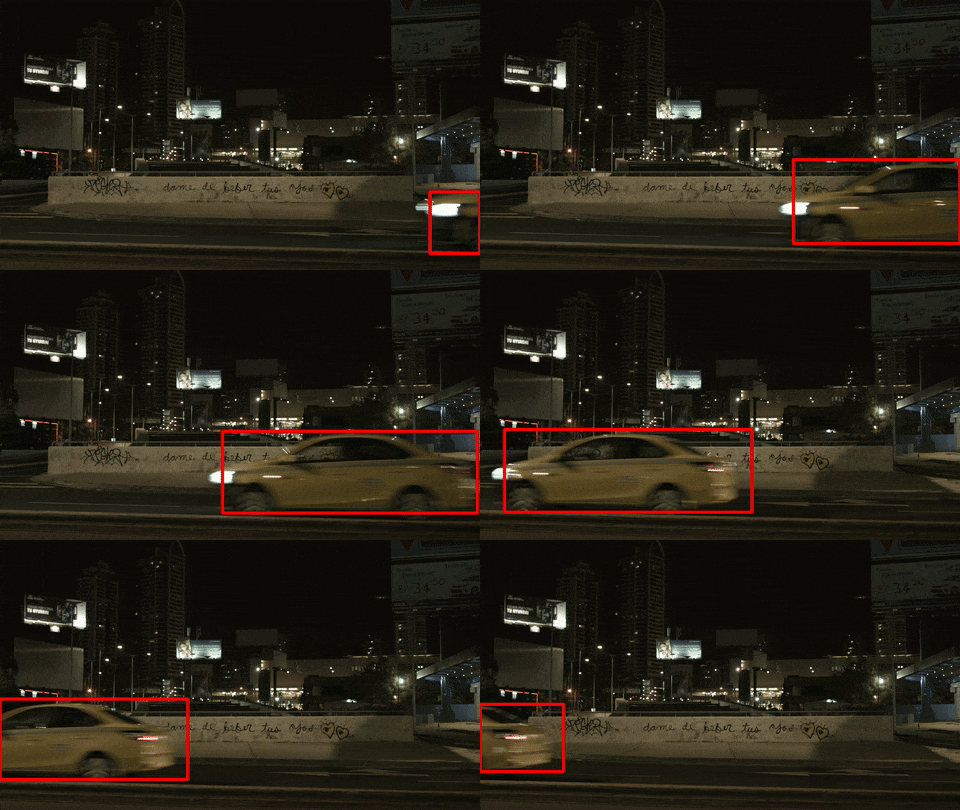
Overlays are only supported when output mode is set to OpenCV.
-
-bb, --bounding-box
Draw a bounding box around the areas where motion is detected.
An optional amount of time for temporal smoothing can also be specified (e.g.-bb 0.1s). The default smoothing amount is 0.1 seconds. If set to 0 (-bb 0), smoothing is disabled.
The color, thickness, and minimum size can be set with a config file. -
-tc, --time-code
Draw time code of each frame on the top left corner.
Text properties (e.g. color, font size, margin) can be set with a config file. -
-fm, --frame-metrics
Draw frame metrics, including motion score, on the top right corner.
Text properties (e.g. color, font size, margin) can be set with a config file.
Config File
Settings are specified one per line as option = value. Lines starting with # are ignored as comments. The dvr-scan.cfg config template can be saved and used as a starting point (it includes the information in this section as comments).
Configuration options are set as option = value, and lines starting with # are ignored as comments. For example:
# This is an example of a DVR-Scan config file.
# Lines starting with # are treated as comments.
time-before-event = 0.5s
time-post-event = 2.0s
bounding-box = yes
bounding-box-color = 0xFF0000
General
-
region-editor
Always show region editor window before scanning.region-editor = no -
quiet-mode
Suppress all console output.quiet-mode = no -
verbosity
Verbosity of console output (debug,info,warning,error). If set todebug, overridesquiet-modeunless set via command line.verbosity = info -
startup-mode
Which mode the DVR-Scan app (dvr-scan-app) starts in (wizardorclassic). The Scan Wizard provides a simplified step-by-step workflow, while classic mode shows all settings at once. You can switch between modes at any time from the application. Has no effect on thedvr-scancommand line.startup-mode = wizard
Presets
The DVR-Scan app includes a preset dropdown for saving and restoring groups of settings. User presets are stored as regular config files in a presets folder next to the user config file (use Settings -> Open Presets Folder to view it); the filename is used as the preset name. The special Default preset is the user config file itself, and is loaded automatically on startup. Files which are not valid config files are ignored.
Logging
-
save-log
Save a detailed log for each run of DVR-Scan. Each log file is named using a timestamp in the formatdvr-scan-YYYY-MM-DD-HH-MM-SS-RANDOM.log. For the GUI, the prefixdvr-scan-appis used instead.save-log = yes -
max-log-files
Maximum number of log files to keep. Set to 0 to keep all log files.max-log-files = 4
Input
-
input-mode
Which mode to use for decoding frames: (pyav,opencv,moviepy).input-mode = pyav -
downscale-factor
Integer factor to shrink video before processing. Values <= 1 disable downscaling. Leave unset for auto.downscale-factor = 2 -
frame-skip
Number of frames to skip between processing when looking for motion events.frame-skip = 0
Output
-
output-dir
Directory to output all created files. If unset, files will be created in the current working directory.output-dir = C:/temp/scanned/ -
output-mode
Method of generating output videos: (scan_only,opencv,encode,ffmpeg,copy). Not all features are supported in all modes. The default (encode) requires ffmpeg; if ffmpeg is unavailable and no mode is set,opencvis used as a fallback.output-mode = encode
Multiple input files are not supported when -m/--output-mode is set to ffmpeg or copy (they are supported with opencv and encode). You can use ffmpeg to concatenate all input videos before using DVR-Scan, or run DVR-Scan in a for-loop.
-
encode-args
Encoder parameters used when generating output files when output-mode is encode. Stream mappings (-map) are generated automatically based on the audio streams present in the input video(s) and must not be set here.encode-args = -c:v libx264 -preset veryfast -crf 22 -c:a aac -
ffmpeg-input-args
Arguments added before the input toffmpegwhen output-mode is ffmpeg or copy. Note that -y and -nostdin are always added.ffmpeg-input-args = -v error -
ffmpeg-output-args
Encoder parameters used when generating output files when output-mode is ffmpeg. These arguments are added after the input and duration.ffmpeg-output-args = -map 0 -c:v libx264 -preset fast -crf 21 -c:a aac -sn -
opencv-codec
Four-letter identifier of the encoder/video codec to use when output-mode is opencv. Must be one of: (XVID,MP4V,MP42,H264).opencv-codec = XVID -
verbosity
Verbosity of console output: (debug,info,warning,error).verbosity = info -
quiet-mode
Suppress all console output: (yesorno). Only a final comma-separated list of timecodes will be printed if set toyes.quiet-mode = no
Motion
All time values can be given as a timecode: (HH:MM:SS or HH:MM:SS.nnn), in seconds as a number followed by s (123s or 123.45s), or as number of frames: (1234).
-
max-events
Maximum number of motion events to detect before stopping the scan early (0 for no limit).max-events = 0 -
min-event-length
Amount of time which must have motion in each frame to trigger an event.min-event-length = 2 -
max-event-length
Maximum mount of time of a single event. Footage beyond this limit goes to a new event.max-event-length = 1000 -
time-before-event
Amount of time to include before a motion event.time-before-event = 1.5s -
time-post-event
Amount of time to include after an event. Cannot be larger thanmerge-window.time-post-event = 2.0s -
merge-window
Merge groups of motion which occur less than this amount of time apart into the same event. The default (auto) uses the same value astime-post-event, which matches the behavior of previous versions.merge-window = auto -
threshold
Threshold representing amount of motion in a frame (or the ROI, if set) for a motion event to be triggered.threshold = 0.15
Advanced
-
bg-subtractor
Type of background subtraction to use: (MOG2,CNT,MOG2_CUDA).bg-subtractor = MOG2 -
max-threshold
Scores of this amount or higher are ignored. 255.0 is the maximum score, so values greater than 255.0 will disable the filter.max-threshold = 255.0 -
variance-threshold
Threshold on the distance between the pixel and the model to decide whether a pixel is well described by the background model. This parameter does not affect the background update.
The threshold is not used by the CNT subtractor.variance-threshold = 16 -
kernel-size
Size (in pixels) of the noise reduction kernel. Size must be an odd number starting from 3, 0 to disable, or -1 to auto-set based on video resolution.kernel-size = -1 -
learning-rate
The value between 0 and 1 that indicates how fast the background model is learnt. Negative parameter value makes the algorithm to use some automatically chosen learning rate. 0 means that the background model is not updated at all, 1 means that the background model is completely reinitialized from the last frame.learning-rate = -1 -
max-area
Events whose bounding boxes have relative area bigger than this are ignored. Maximum area is 1.0 (relative area of the whole frame), so values equal or greater than 1.0 will disable this filter.max-area = 1.0 -
max-width
Events whose bounding boxes have relative width bigger than this are ignored. Maximum width is 1.0 (whole frame), so values equal or greater than 1.0 will disable this filter.max-width = 1.0 -
max-height
Events whose bounding boxes have relative height bigger than this are ignored. Maximum height is 1.0 (whole frame), so values equal or greater than 1.0 will disable this filter.max-height = 1.0
Overlays
Color values can be specified as either (R,G,B) or in hex as 0xFFFFFF. Time values can be given in seconds as a number followed by s (123s or 123.45s), or as number of frames (e.g. 1234).
Bounding Box Overlays
-
bounding-box
Enable bounding box: (yesorno).bounding-box = yes -
bounding-box-color
Box edge color specified asR, G, B.bounding-box-color = 255, 0, 0 -
bounding-box-thickness
Thickness of bounding box, relative to largest edge of input video.bounding-box-thickness = 0.0032 -
bounding-box-smooth-time
Amount of temporal smoothing to apply (seconds or frames).bounding-box-smooth-time = 0.1s -
bounding-box-min-size
Minimum side length of bounding box, relative to largest edge of input video.bounding-box-min-size = 0.032
Text Overlays
-
time-code
Enable timecode overlay: (yesorno). Draws timecode on top left of each frame.time-code = yes -
frame-metrics
Enable frame metrics overlay: (yesorno). Draws frame metrics, including motion score, on top right of each frame.frame-metrics = yes -
text-border
Margin from edge in pixels.text-margin = 5 -
text-margin
Margin from edge in pixels.text-margin = 5 -
text-font-scale
Scale factor for text size.text-font-scale = 2.0 -
text-font-thickness
Thickness of font (integer values only).text-font-thickness = 2 -
text-font-color
Text color specified asR, G, B.text-font-color = 255, 255, 255 -
text-bg-color
Background color specified asR, G, B.text-bg-color = 0, 0, 0